Begin with the comparative and multi-scale concepts, explore a biological example, then choose one of the three input routes. Synthetic exercises support reproducible checks; scientific examples demonstrate applications.
chromoMap2 represents genomic features and their associated measurements in a coordinate-based visual framework. A chromosome, scaffold, contig or selected genomic interval provides a reference axis; annotation records locate features such as genes, variants, methylation sites or regulatory regions on that reference. Multiple chromosome sets can represent different samples, conditions, species or data layers.
1.2 How genomic windows are constructed
The reference is partitioned into genomic windows. In adaptive mode, window size is derived from the longest displayed reference interval and the Window factor. A larger factor increases the number of windows. In fixed mode, the user specifies a window width in base pairs. Window boundaries determine the spatial detail represented in both chromosome coloring and accompanying plots.
Reference intervalsGenomic windowsAssigned annotationsSummary or categoryRendered map
Annotations are assigned to windows by genomic position. With Map spanning annotations enabled, an interval can contribute to every window it overlaps. Without this option, assignment uses the feature’s starting position. A broad feature may therefore contribute to several windows, even though it occurs only once in the input table.
1.3 Numeric and categorical information
Numeric values can determine continuous colors or quantitative plots. Categorical values determine discrete groups and colors. These choices are made separately for each chromosome set. An annotation-only view displays genomic location without treating the data column as a quantitative or categorical measurement.
2. Comparative visualization with chromosome sets
2.1 Comparison is a first-class structure
A chromosome set is a flexible graphical grouping: it can represent a sample, condition, species, reference assembly or measurement layer. Several sets can share a reference or retain distinct chromosome complements. Comparison is achieved by placing these explicitly described sets into a common figure; it does not require chromoLinks.
2.2 Define the biological meaning of every set
For a treatment–control comparison, name the two sets accordingly and use compatible units, genomic windows and normalization. For a cross-species comparison, retain the species-specific coordinates and explain how corresponding features were identified. For multi-omics integration, name the measurement represented by each layer. A shared coordinate display does not by itself harmonize assemblies, units or assays.
3. Multi-scale genomic visualization
3.1 One framework across biological scales
A reference row can represent a chromosome, scaffold, contig, selected genomic region, gene or transcript-centred interval. Annotation rows locate features within it. The same window-based mapping and quantitative/categorical encodings are available across these scales, while the input route determines how the tables are obtained.
Comparative dimension
Sample or conditionSpeciesMeasurement layerAdditional dataset
↓ Multiple chromosome sets ↓
Editable chromosome and annotation tables Common chromoMap2 visualization framework
↓ Biological scale ↓
Chromosome / scaffoldContig / regionGeneTranscript / local features
Optional: chromoLinks adds supplied feature ↔ feature relationships within or across sets.
3.2 Multi-omics requires explicit encodings
Numeric measurements, categorical annotations, alignments and regional signal can be combined in layer-specific representations. State what each set and series measures, including its unit and preprocessing. Window resolution determines the granularity of the displayed observations; changing a window does not change the biological scale of the underlying reference.
4. Choose a workflow for your biological question
4.1 Three ways to enter the same visualization framework
Use Route 1 when reference coordinates and feature-associated values are already prepared. Use Route 2 to reconstruct a named gene and its transcript hierarchy. Use Route 3 when many source records need to be summarized before rendering. Each route produces or accepts chromosome and annotation tables; none requires a language model.
4.3 Know the support boundary
Core CSV/TSV workflows and plain GFF3 provide the simplest first tests. Compressed/indexed GFF3, BAM/BAI and BigWig routes additionally depend on browser workers, WebAssembly and compatible files. See the format matrix and run the fillable QA checklist in your own browser. Unchecked browser/format combinations are not certified supported.
5. Explore one-click biological examples
These saved examples demonstrate biological applications. They load as ordinary editable chromoMap2 projects; the downloadable packages contain the prepared/generated tables, configured HTML and an attribution README. They do not contain the upstream raw BAM/GFF3/bedGraph files unless explicitly stated.
Provenance boundary. The descriptions below reflect information recorded in the existing figures. Assembly/release identifiers and complete source-processing recipes must be verified before reanalysis or publication. Synthetic files serve a different role: they provide exact numerical checkpoints.
Grapevine sequencing-depth comparison
ComparativeGenome scaleSequencing depth
Biological question. How does regional sequencing depth vary between the wild and cultivated grapevine groups?
What loads. 2 editable chromosome set(s); annotation rows: 946, 946. The two sets encode quantitative expression summaries and fold-change annotations; inspect data/data2 fields and the saved plot labels before interpretation.
Processing. The saved description reports normalized cohort expression and logFC; the full normalization and statistical preprocessing recipe is not recorded.
Inspect the multi-area series and heat-map scale.
Compare feature values in tooltips, rather than inferring clinical conclusions.
Minutes 2–4: inspect the three sets: cultivated/domestic signal, wild signal and gene structure. Confirm their table contents and data modes in Select Data and Visualise Data.
Minutes 4–6: hover over the two quantitative layers and compare values near structural features. Inspect the absolute/relative scales and selected window size.
Minutes 6–8: change one presentation setting, recreate the map, and verify the scientific meaning remains the same. Do not interpret a color change as a biological result.
Minutes 8–10: export the figure and window data; download the example package and retain its README. Record unresolved assembly and processing details before using the example as evidence.
Tour duration is a suggested learning route, not a measured performance benchmark.
6. Inspect an interactive map
6.1 Chromosome-window tooltips
Hover directly over a chromosome region to inspect the annotations assigned to the corresponding window in that chromosome set. Depending on the representation, a tooltip can include a coordinate interval, feature names, counts, numeric values or series summaries. These are computed from the active data and settings; they should be interpreted in that context.
6.2 Genomic-window tooltips
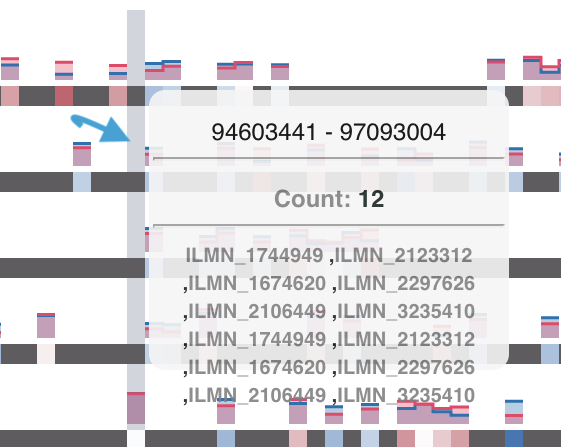
Hover in the space between chromosome bodies to inspect the shared genomic-window guide. This view groups annotations by window position across the displayed map. Window guides are enabled by default for newly created maps. They can be controlled under Plot Properties → Global → Chromosome layout → Window guides. The Tooltips & toolbox option controls general plot interactivity.
A genomic-window inspection complements the chromosome-specific tooltip. The illustration is an interface example, not the expected output of the synthetic exercises.
6.3 Inspect, then export
Use tooltips for exploration and the window-data export for systematic inspection. PNG and SVG figures preserve a visual result; interactive HTML preserves browser-based inspection. A tooltip’s absence may reflect disabled interactivity, an empty window, or hovering over a different graphical layer.
Unit II · DATA & OUTPUTS
Preparing data and exporting results
7. Input formats and coordinate conventions
7.1 Application tables use one-based inclusive intervals
Chromosome and annotation tables require positive coordinates with both endpoints included. A feature at 101–110 contains ten bases. BED/bedGraph instead use zero-based, half-open intervals: [100,110) represents the same bases. The dedicated BED/bedGraph importer performs format-specific conversion; an application CSV/TSV table must already use the application convention.
7.2 The validator cannot infer the reference assembly
Blank, zero, nonfinite, fractional, reversed and out-of-bounds coordinates are rejected. Chromosome names must match exactly. Positive but systematically shifted BED starts, wrong genome builds, mislabeled biological groups and incompatible units cannot all be inferred automatically. Verify these before combining sources.
7.3 Preserve reference and processing metadata
Record species, assembly accession/release, chromosome naming, coordinate convention, source files, measurement units and processing. Keep synthetic validation separate from scientific use cases and from stress tests. A format accepted by the parser is not proof that the underlying biology is correctly represented.
8. Prepare chromosome and annotation tables
8.1 Required columns
For table-based workflows, each set requires a chromosome table and an annotation table. Use CSV with comma-separated fields or TSV with tab-separated fields. The first row must contain column names. Export plain text from a spreadsheet rather than renaming an XLSX file.
Table
Column
Meaning
Chromosomes
name
Unique reference identifier
start
First included genomic coordinate
end
Last included genomic coordinate
Annotations
name
Feature identifier, also used by labels, markers and named links
Additional numeric series use data2, data3 and so forth. The optional strand column records direction. A cate column can supply categorical grouping for a scatter-categorical representation. See the library reference for additional programmatic fields.
8.3 Coordinates are not BED coordinates
The application’s chromosome and annotation tables use 1-based, inclusive intervals: the first base is 1 and both endpoints are included. An interval from 101 to 110 contains ten bases. BED and bedGraph instead use zero-based, half-open intervals. To convert a BED interval [100,110) to these tables, use start 101 and end 110.
8.4 Create and edit tables inside the application
Open Select Data → Create from data files and specify the number of sets.
Use the chromosome or annotation table creation control for the relevant set, or upload a prepared table.
Open View/edit to inspect rows, add records or optional columns, and correct values.
Select Apply changes. Invalid required values prevent the edit from being committed. Correct the highlighted problem described in View Logs, then apply again.
The editor remains available after file upload and after generated inputs are populated. Editing a table changes the project; it does not modify the original file on disk.
9. Prepare GFF3, BAM/BAI, BED, bedGraph and BigWig inputs
9.1 GFF3 annotation
GFF3 describes sequence features in nine tab-separated columns: sequence identifier, source, feature type, start, end, score, strand, phase and attributes. Coordinates are 1-based and inclusive. Gene-map workflows require gene records, and transcript/exon reconstruction depends on valid ID and Parent relationships. A file with exon coordinates but no gene hierarchy is not equivalent to a complete gene annotation.
The spacing above is illustrative; actual GFF3 fields must be separated by tabs. The importer checks column counts, coordinate ordering, strand, phase, score and declared sequence-region boundaries. These checks do not establish biological annotation completeness.
9.2 BAM and BAI
BAM stores alignments against a reference sequence. Use coordinate-sorted BAM and the matching BAI index for alignment workflows. The index must belong to that exact BAM. Reference identifiers and genome assembly must agree with the annotation. A BAI does not correct sorting, identifier or assembly incompatibility.
9.3 BED, bedGraph and BigWig
BED describes genomic intervals; bedGraph adds a numeric signal value in its fourth field. BigWig is an indexed binary representation of continuous genomic signal. The regional-data importers handle these formats separately from chromoMap tables. Do not apply a second coordinate conversion to a bedGraph file passed to its dedicated importer.
9.4 Compressed and indexed inputs
For the gene-catalog route, a compressed GFF3 should be BGZF-compressed and accompanied by its matching Tabix .tbi. A sorted synthetic BGZF reference and matching TBI are provided for this route. Ordinary gzip and BGZF are not interchangeable for indexed querying. The genome-wide reduction route has its own index requirements; follow the labels in that workflow. BigWig contains its own index.
9.5 File-format and browser compatibility
Route / file
Requirement
Browser-dependent component
CSV / TSV tables
Named headers; one-based inclusive coordinates
Local file access and SVG/canvas rendering
Plain GFF3
Valid gene and Parent hierarchy for gene/transcript reconstruction
Web Worker; full-file parsing
BGZF GFF3 + TBI
Matching Tabix index for indexed gene queries
DecompressionStream and WebAssembly/Tabix
BAM + BAI
Coordinate sorting and matching index/reference
WebAssembly alignment tools and sufficient local memory
BED / bedGraph
Correct dedicated route and numeric signal structure
Streaming worker parsing and reduction
BigWig
Compatible reference names; embedded index
WebAssembly signal extraction
Use a current desktop browser with local-file, worker, SVG and canvas support. Optional WebLLM additionally depends on compatible device/browser capabilities. Automated code tests do not replace end-to-end browser tests. The QA checklist includes Chrome, Firefox, Safari and Edge runs; record versions and outcomes rather than assuming all combinations work.
10. Export interactive HTML and reusable projects
10.1 Online-library export
Create the map and inspect it.
Open Export → Standalone HTML plot.
Choose Online libraries — internet required and select Download HTML.
Open the downloaded file in a browser. Its data and configuration are embedded; the rendering libraries are loaded from the chromoMap2 deployment.
This is a single HTML download, but it is not a self-contained offline document. An internet connection and access to the hosted libraries are needed to render it. Library URLs are content-addressed so the file refers to the exported library version rather than silently selecting a later version.
10.2 Offline viewing
Choose Local libraries — offline viewing, export the HTML, and download d3.v5.js and chromoMap2.js using the adjacent buttons. Keep all three files in the same folder. Share them together, for example in a ZIP archive. Test the package without a network connection before distributing it as an offline result.
10.3 Sharing and reuse
Interactive figures can be shared with collaborators or incorporated into a website that permits the required JavaScript. An exported HTML file contains the embedded dataset: review it before sharing sensitive or unpublished records. The application can import recognized chromoMap HTML to recover editable data and settings; arbitrary HTML is not a supported project format.
11. Export publication-quality PNG and SVG figures
11.1 Choose raster or vector output
Use Export → Download PNG for a raster figure. Increase PNG scale to obtain more pixels, then assess the file at its intended publication size. The scale setting is not itself a guarantee of a journal-specific DPI requirement. Use Download SVG when an editable vector representation is appropriate.
11.2 Check the scientific encoding
Verify coordinate units, selected windows and aggregation.
Use labels and legends that identify samples, data types and units.
Check that typography is readable at the final size and colors remain distinguishable.
Inspect clipping, legend placement, reference lines and annotation overlap.
Open the exported artifact itself; a correct on-screen preview does not prove export fidelity.
Retain the input data and configuration with the exported figure. State whether a quantitative axis represents individual observations, window summaries, coverage or another derived quantity.
12. Export and interpret genomic-window data
12.1 What the export represents
Export → Window data → Export window data downloads computed chromosome-window records from the rendered map. Depending on the input and representation, records describe chromosome/set identifiers, coordinate bounds, assigned feature names or counts, and numeric or categorical series summaries. Inspect the CSV header to identify the fields present in that export.
12.2 Match the export to the figure
Create the map again after changing input, resolution or aggregation, then export. The output describes that rendered state, not all conceivable summaries of the input. Mean, sum and count answer different questions; a mean of window means is generally not the mean across all original features.
Unit III · SCIENTIFIC WORKFLOWS
Route 1 · Building and comparing maps from CSV/TSV tables
13. Build a chromosome map from genomic data tables
13.1 Biological question and when to use this workflow
Where are the supplied genomic features, and how do associated values vary across a reference? Choose this route when its input and scale match that question; cross-reference the route selector before proceeding.
13.2 Example and files
Use chromosomes.tsv and numeric.tsv for exact synthetic checkpoints. The early biological gallery illustrates prepared-table results. Download the synthetic input pack and consult known numerical checkpoints.
13.3 Prepare the reference and features
Use chromosomes.tsv and numeric.tsv. Although the annotation file contains measurements, an annotation-only map need not encode them. The required table fields and coordinate convention are explained in Chapter 8.
13.4 Construct the map
In Select Data, specify one chromosome set and open Create from data files.
Upload the chromosome table to the chromosome input and the annotation table to the annotation input.
Use View/edit to confirm names, coordinates and row counts, or create equivalent tables directly in the editor.
Open Visualise Data, select the set, and choose Annotations only.
Select Create chromoMap. Hover over occupied windows to inspect the assigned features.
13.5 Read the result
This map establishes where features occur at the selected resolution. An occupied window may contain multiple features. It should not be interpreted as an exact feature boundary at a coarser resolution. Figure geometry and presentation can be adjusted as described in Unit VIII.
13.6 Expected result and interpretation
Inspect the reference interval, named features, counts and chosen encoding against the supplied inputs. Use tooltips and exported window records to verify selected values. The scientific gallery provides live configured output previews; synthetic checkpoints provide exact coordinate and numerical expectations.
13.7 Export and reproduce
Retain the source files, reference assembly, generated tables, data modes, window/aggregation settings and legends. Export an interactive HTML result plus an appropriate static figure and window-data CSV. Related routes and configuration chapters are linked throughout this workflow.
Existing configured biological output for this route; the synthetic exercise uses different inputs. Open full interactive figure
14. Compare genomic features across chromosome sets
14.1 Define the comparison
Two sets can represent samples, species or annotation layers. For a same-reference comparison, use matching chromosome names and coordinates. For different species, retain each species’ own reference coordinates and identify correspondence separately. Similar horizontal position is not evidence of orthology.
14.2 Build a two-set map
Set the chromosome-set count to two.
Load the chromosome table into both sets and assign an annotation table to each.
Name the sets according to their biological meaning.
In Visualise Data, select each set in turn and choose Annotations only.
Create the map, then adjust chromosome-set spacing if needed.
For practice, use the numeric table in one set and the categorical table in another; both contain named anchor loci. Use the reorder controls in Select Data to change layer order. Explicit feature-to-feature relationships can subsequently be shown with chromoLinks.
15. Visualize quantitative genomic data
15.1 Configure the data representation
Load the 200-locus numeric example and select its set in Visualise Data.
Choose Numeric. Enable Show heat map to encode values by chromosome-window color.
Select a bar, scatter, line or area plot when an accompanying quantitative track is required.
Open Plot Properties → Per chromosome set → Plot configuration and choose Aggregation.
Configure the color palette and domain under Data mapping, then create the map.
15.2 Interpret the encoding
A heat map shows an encoded summary, not an additional independent measurement. Bars emphasize magnitudes; scatter plots emphasize observed positions; lines and areas emphasize spatial patterns. A connecting line does not establish a measured value at every intermediate base. For a signed measurement such as log fold change, consider a diverging palette and an explicit domain centered on zero.
15.3 Add a legend
Select the same set under Plot Properties → Per chromosome set, open Legend, and enable Show legend. Recreate the plot. The built-in numeric color legend follows that set’s data domain. See Chapter 40 for independent legends describing plot-series colors.
Select the set in Visualise Data and choose Categorical.
Enable Show heat map. Under Data mapping, leave the domain blank for inference or specify an ordered categorical domain.
Assign distinguishable Data colors and enable Legend → Show legend for the selected set.
Create the map and inspect category labels in tooltips and legend entries.
16.2 Category summaries require care
The example contains two kinase and two TF annotations. If several categories share a window, inspect the tooltip rather than inferring every contributing annotation from one displayed color. A categorical-stack plot can be useful when the relative composition of categories is the question.
17. Compare samples, conditions or species
17.1 Construct comparable tracks
Load numeric.tsv into set 1 and numeric-second.tsv into set 2, using the same reference table for both. Select Numeric separately for each set. In this synthetic pair, the second series is twice the first at every named locus.
Choose identical fixed window size and feature-assignment settings.
Select the same aggregation operation for both sets.
Choose compatible plot types and explicit units.
Use a shared numeric domain when direct color comparison is required, or state clearly why separate domains are used.
Create the map and verify selected values in both layers.
17.2 Compare like with like
A visual difference may arise from normalization, unequal feature coverage or different reference annotation rather than a biological effect. Match identifiers and genomic intervals before treating windows as paired observations. Do not compare color intensity across independently scaled tracks without inspecting their legends.
18. Visualize multiple measurements
18.1 Structure the table
Store measurements for the same feature in data, data2, data3 and additional numbered columns. Each record still has one feature name and genomic interval. Use multiple sets instead when the biological entities or feature locations differ.
Under per-set Plot configuration → Plot colors, supply one color per series.
Under Legend labels, enter series descriptions in the same order, and state measurement units in the y-axis label.
Add a custom categorical legend if an explicit key to line/area colors is needed.
A scatter-categorical plot uses numeric positions together with a categorical grouping field such as cate. Check the table structure and tooltip after selecting it. Do not assume a mode combines different units into a common scale automatically.
19. Build multi-layer genomic maps
19.1 Assign one scientific role to each layer
A composite view may include gene structure, quantitative signal and categorical annotation. Use a separate set for each layer requiring independent data mode, plot type or palette. For a same-locus comparison, keep reference identifiers and genomic bounds consistent across sets.
19.2 Build incrementally
Create a valid map for the first layer and inspect it.
Add the next set, load its tables and choose its data mode independently.
Configure plot height, chromosome display, heat map and axis label for that set.
Repeat for additional layers, naming each clearly.
Adjust spacing and legends only after confirming that all layers represent the intended intervals.
A numeric first set and categorical second set can coexist. Switching the set selector should restore the data mode for that set. If a layer disappears, inspect its plot type, heat-map state, reference bounds and data domain before changing other layers.
20. Highlight values with filters
20.1 Plot-value filtering
The per-set Plot filter applies a color to values satisfying a numeric comparison. It is a visual condition, not a statistical test and not a replacement for documenting preprocessing.
Select the set under Plot Properties → Per chromosome set.
Open Plot filter and choose an operation, for example Greater than.
Enter the threshold in Number 1. Range operations also require Number 2.
Choose a filter color and create the plot.
Inspect values just below, at and above the threshold to confirm the intended behavior.
20.2 Epi-tag filtering
The separate Epi-tag filter determines which tags are displayed. It has its own operation and thresholds. A hidden tag does not imply that its source observation was removed from every analysis. Record filter settings with any exported figure.
21. Visualize locus-specific measurements with epi-tags
21.1 When a tag representation is useful
Epi-tags provide a compact marker or lollipop-style representation for local measurements. They can be useful for methylation-associated values or other locus-specific signals, provided the data units and encoding are explicit. The name does not restrict the feature to epigenetic measurements.
21.2 Configure tags
Load a compatible numeric or categorical annotation table and select the appropriate data mode.
Select the Tags (lollipop plot) representation.
Under per-set Epi-tags, adjust Tag color, Tag radius, Multi radius, Triangle size and Plot shift as applicable.
Use Epi-tag filter if only a defined subset should remain visible.
Create the map and inspect individual sites and densely populated windows.
Tags and the Markers feature have different purposes: tags encode observations in a plot layer; markers identify named annotations selected by the user.
22. Create a gene map from custom tables
22.1 Reuse the table framework
A chromosome-table row can represent a selected gene region rather than a complete chromosome. For a gene at coordinates 101–310, create a reference row such as geneA,101,310. Annotation rows can represent exons, UTRs, CDS segments or other local features; their ch_name must then be geneA.
22.2 Construct a local categorical map
Create or upload a reference table for the selected gene region.
Add annotation rows for its components using their genomic coordinates and feature classes in data.
Choose Categorical, enable the heat map and assign a consistent feature palette.
Enable strand arrows when strand values are available, then create the map.
Use Absolute, Relative or Both under Genomic scale to show reference coordinates, local distance or both. Preserve the true genomic origin in the table if genomic positions matter. Unit IV introduces automated reconstruction from GFF3 and the addition of regional signal or alignments.
Unit IV · SCIENTIFIC WORKFLOWS
Route 2 · Exploring genes and gene-associated data
23. Create a gene map directly from GFF3
23.1 Biological question and when to use this workflow
What structure and local context are represented by the selected annotated gene? Choose this route when its input and scale match that question; cross-reference the route selector before proceeding.
23.2 Example and files
Use reference.gff3, optionally signal.bedgraph or alignments.bam with its BAI. The grapevine gene example illustrates a configured biological result. Download the synthetic input pack and consult known numerical checkpoints.
23.3 Load and select a gene
Open Select Data → Create gene-maps from annotations (GFF3) files.
Select reference.gff3 and choose Read genes. The plain synthetic file does not require an index.
Search for geneA and select it from the catalog.
Set flanking bases to 0 for the first comparison, choose the gene-structure mode and select the feature classes to include.
Use the populate control to generate editable inputs, then select Create chromoMap.
23.4 Verify the reconstructed interval
In the synthetic reference, geneA is on chr1, spans 101–310 and has positive strand. Its exons are 101–150 and 251–310. The broader gene model is intentionally distinct from the short named loci in the numeric table. Use the generated table editor to inspect actual coordinates and feature classes.
23.5 Understand transcript selection
For a single-gene structure view, the implementation prioritizes annotated MANE Select, Ensembl canonical and RefSeq Select transcript labels, then falls back to the longest transcript. Inspect the reported selection rather than assuming it is a biologically established principal isoform. If no transcript hierarchy exists, the available gene-level features may be limited.
23.6 Expected result and interpretation
Inspect the reference interval, named features, counts and chosen encoding against the supplied inputs. Use tooltips and exported window records to verify selected values. The scientific gallery provides live configured output previews; synthetic checkpoints provide exact coordinate and numerical expectations.
23.7 Export and reproduce
Retain the source files, reference assembly, generated tables, data modes, window/aggregation settings and legends. Export an interactive HTML result plus an appropriate static figure and window-data CSV. Related routes and configuration chapters are linked throughout this workflow.
Existing configured biological output for this route; the synthetic exercise uses different inputs. Open full interactive figure
24. Compare transcript structures
24.1 Generate one reference row per transcript
Read the GFF3 gene catalog and select a gene.
Choose the transcript representation and specify flank and feature classes.
Populate the inputs and create the map.
Compare exon/CDS/UTR arrangements across the transcript rows and inspect their coordinates in the editor.
24.2 Interpret strand and hierarchy
The synthetic reference has one transcript for each of geneA and geneD, so it validates structure rather than alternative-splicing complexity. Repeat the exercise with geneD to inspect a negative-strand model. Genomic coordinates still increase left to right; a negative strand changes transcriptional direction, not the coordinate convention.
Multiple transcript models require a GFF3 with linked mRNA/transcript records and their children. If the application reports no linked transcripts, inspect the gene identifier and Parent hierarchy. Do not infer transcript absence in the organism from incomplete annotation input.
Choose Sequencing depth or Aligned read view, run the analysis and create the resulting map.
Use sufficiently fine windows to inspect local changes rather than averaging them into a broad interval.
25.2 An independent depth checkpoint
The two synthetic reads cover chr1:101–110 and chr1:106–115. The expected depth is 1 at 101–105, 2 at 106–110, and 1 at 111–115. There are 15 covered bases and a sum of per-base depth of 20. These values are independently checked with native samtools in the test suite.
26. Combine gene structure with regional genomic signals
26.1 Extract signal around a selected gene
Select geneA and choose the structure-plus-regional-data workflow.
Choose the desired flank, extract the data and create the populated map.
Inspect structural features and the signal layer separately, then configure each set’s data mode and representation.
26.2 Interpret interval overlap
The first bedGraph intervals are chr1:100–110 with value 2 and chr1:300–310 with value 4 in zero-based, half-open coordinates. They correspond to 101–110 and 301–310 in the 1-based gene view. The dedicated importer performs this format-specific conversion.
BED, bedGraph and BigWig inputs must match the annotation’s assembly and reference identifiers. An empty extracted signal can indicate no overlapping records or an incompatibility; it is not evidence of biological absence without checking those possibilities.
Unit V · SCIENTIFIC WORKFLOWS
Visualizing genomic relationships
27. Understand chromoLinks
27.1 Define the relationship before drawing it
chromoLinks connect named annotations within a chromosome, between chromosomes, or across sets. A relationship may represent an orthology assignment, a known interaction or another correspondence supplied by the user. The application displays those relationships; drawing a connection does not infer orthology or validate an interaction.
27.2 Edges and chords
Edges emphasize a connection between feature positions. Chord-style links emphasize a ribbon-like connection and may span the mapped annotation interval. Directed edges can indicate a source-to-target relationship. Direction should have a stated biological or analytical meaning rather than serving only as decoration.
Numeric or categorical values attached to link records can be encoded by color. The link color scale is separate from the chromosome-window palette. Explain both encodings when they occur in the same figure.
Load the chromosome and annotation tables for all participating sets.
Open chromoLinks → Link data → Create / edit link table.
Select source and target sets; annotation selectors are populated from the loaded records.
Add the relationships, apply changes, and inspect the resulting link configuration.
Alternatively, import links.tsv through the CSV/TSV input. Duplicate annotation names can make an endpoint ambiguous; use identifiers that clearly locate the intended features. The named-endpoint route avoids manually entering internal rendered-window identifiers.
29. Visualize relationships with edges
29.1 A two-set exercise
Load the common chromosome table into two sets. Use numeric.tsv for set 1 and numeric-second.tsv or categorical.tsv for set 2.
Select each set’s data mode independently and create a valid map.
Import links.tsv under Link data.
Under Link appearance, enable Show links and leave Chord links disabled.
Enable Directed edges if direction is meaningful; create the map and inspect the geneA and geneB connections.
29.2 Link colors and interactivity
With color mapping disabled, the configured link color supplies a uniform encoding. Enable the color-mapping option to map link-associated data. The current UI labels this control Numeric color map; the renderer also recognizes nonnumeric link values as categories. Supply a consistent value type and an appropriate palette. Confirm the inferred colors and legend against the actual link values.
Tooltips & toolbox controls interactive inspection. Under global Legend positioning, link-legend x/y offsets adjust the key. A missing edge can result from an unresolved feature name, incorrect set number, disabled Show links or an annotation outside the rendered reference.
30. Visualize relationships with chords
30.1 Switch representation without changing the evidence
Start from a working edge map with resolved endpoints.
Enable chromoLinks → Link appearance → Chord links.
Configure link colors and optional data mapping, then recreate the figure.
Inspect how the chord relates to the annotation’s mapped span at the selected resolution.
30.2 Avoid overinterpreting geometry
A chord indicates a supplied relationship. Its visual span is influenced by feature extent and window assignment; it is not automatically a quantitative estimate of interaction strength. Use a clearly defined link-associated numeric value when encoding strength by color, and state its units and origin.
Unit VI · SCIENTIFIC WORKFLOWS
Route 3 · Visualizing large genome-scale datasets
31. Reduce large genomic datasets into windows
31.1 Biological question and when to use this workflow
How does a large source dataset vary across explicitly defined genomic windows? Choose this route when its input and scale match that question; cross-reference the route selector before proceeding.
31.2 Example and files
Use the synthetic GFF3 with BAM/BAI or bedGraph. The grapevine depth package provides the existing reduced-table result, not upstream raw data. Download the synthetic input pack and consult known numerical checkpoints.
After reduction, chromoMap2 converts window-level summaries into chromosome and annotation tables. These generated tables enter the same visualization workflow as manually uploaded CSV/TSV inputs, allowing users to inspect or edit the reduced data before creating and configuring the final map.
31.3 Reduction before rendering
The large-scale workflow processes source annotations, alignments or signal into regional records before plotting. Reference GFF3 identifies the available chromosome, scaffold or contig intervals. Adaptive or fixed windows define the reduction grid. The resulting chromosome and annotation tables can be inspected and edited like other project inputs.
31.4 Choose the spatial and statistical resolution
A smaller window can expose localized variation but increases the number of output records and rendering complexity. A larger window emphasizes broader patterns. Choose count, sum, average, minimum, maximum or median according to the question and the underlying observations. The meaning of an observation differs between a gene record, a covered alignment base and a signal interval.
31.5 Expected result and interpretation
Inspect the reference interval, named features, counts and chosen encoding against the supplied inputs. Use tooltips and exported window records to verify selected values. The scientific gallery provides live configured output previews; synthetic checkpoints provide exact coordinate and numerical expectations.
31.6 Export and reproduce
Retain the source files, reference assembly, generated tables, data modes, window/aggregation settings and legends. Export an interactive HTML result plus an appropriate static figure and window-data CSV. Related routes and configuration chapters are linked throughout this workflow.
32. Create genome-wide gene-density maps
32.1 Generate a gene-density map
Open Select Data → Create from large-scale omics data.
Select Gene-density map and supply a compatible reference GFF3.
Choose reference-region type and any region-name filter.
Set fixed windows for an explicitly reproducible grid, or adaptive windows for exploratory inspection.
Select a count summary when the intended measurement is the number of contributing gene records. Run the reduction.
Inspect the populated tables, select the representation and create the map.
32.2 What the count means
Counts describe gene records assigned to each window under the selected method. An interval spanning multiple windows can contribute more than once across the map. Gene density per base or per megabase additionally requires an explicit denominator, especially for partial terminal windows. Differences in annotation completeness can affect comparisons between species or assemblies.
33. Summarize genome-wide sequencing depth
33.1 Sequencing-depth summaries
Choose Sequencing-depth summary in the large-scale workflow.
Supply the reference GFF3, coordinate-sorted BAM files and their matching BAI files.
Choose reference regions, window mode and summary operation.
Run the analysis, inspect the generated series and record the reported engine and processing settings.
Render with a line, area or other suitable quantitative representation.
The current depth reduction feeds covered-base depth observations into the regional summary. Uncovered bases are not necessarily included in the averaging denominator. The synthetic BAM therefore has a covered-base mean of 20/15, whereas its chr1-wide zero-inclusive mean would be 20/1000. These are different questions, not interchangeable QC metrics.
34. Summarize regional numeric signals
34.1 Regional numeric-signal summaries
Choose Regional numeric-data summary.
Provide the reference and compatible BED, bedGraph, BigWig, CSV or TSV signal input through the specified control.
Select the windowing and summary operation, run the reduction, and inspect the generated values.
Keep the reduction window size when first plotting the results; a second aggregation can change their meaning.
Multiple samples may be combined as distinct numeric series in the generated data. Verify series names and units rather than assuming each uploaded file always becomes a separate chromosome set. For a real-data analysis, retain the source accession, reference assembly, transformation steps and relevant filtering parameters.
35. Inspect and edit the generated chromoMap2 tables
35.1 Inspect the transformation before plotting
The reduction output is not a separate visualization system. Its chromosome table defines reference bounds and its annotation table contains window intervals with derived values. Use View/edit to check coordinates, data series, sample labels and any available record-count/source fields.
35.2 A transparent small example
For the synthetic BAM, chr1:101–115 contains 15 covered bases with depth sum 20. In a 100-bp reduction window 101–200, a covered-base mean is 20/15. A zero-inclusive mean would instead use 100 as its denominator. Keep the operation and denominator with the generated data.
Reference
Window
Covered records
Depth sum
Covered-base mean
chr1
101–200
15
20
1.3333…
This is an expected numerical checkpoint for the synthetic source, not a screenshot or an observed benchmark.
35.3 Edit without losing provenance
Generated rows can be edited, but preserve the original reduction output and distinguish manual edits from source-derived values. Record the engine, reference selection, window mode/size, summary and sample meanings. Download generated inputs when the workflow offers those controls, or retain the project/HTML and window-data export.
36. Create the final chromosome-scale map
36.1 Finish through the common visualization route
Inspect the generated tables and confirm that every reference and annotation is compatible.
In Visualise Data, select each set, choose Numeric and select an appropriate bar/line/area/heat-map representation.
Use the reduction window size initially. Avoid inadvertently applying a second incompatible summarization.
Configure domains, axis units and built-in/custom legends.
Create the map, inspect representative windows, then export PNG/SVG, interactive HTML and window data.
Download the grapevine depth package for the saved 100000-bp-window figure and extracted generated tables. It demonstrates the reduced-table-to-figure stage. Upstream BAM files and a complete processing recipe are not included; do not treat this package as a full raw-data reproduction of the study.
36.3 Limits and related routes
Regions with no assigned records, reference filters, source coverage and aggregation semantics affect the result. A smooth line is a window summary, not a measurement at every base. Compare the local gene-depth workflow and the prepared-table comparison when a different scale or starting point is required.
Unit VII · INTERPRETATION & OUTPUT
Annotating and interpreting genomic maps
37. Highlight genomic regions of interest
37.1 Define a region of interest
Additional Features → Plot highlights adds shaded coordinate intervals. Highlights can mark a candidate region, a selected locus or another interval relevant to the scientific question. They are visual annotations; their presence does not change the underlying measurement.
Use Create / edit highlight table or import a CSV/TSV table.
Specify start and end, with optional color, opacity and label.
Select Highlight layer: Background places the region behind the map, while Overlay places it above plotted elements.
Create the figure and check that the chosen opacity preserves the readability of data and labels.
A global interval highlight follows the shared horizontal coordinate frame. It is not automatically restricted to a named chromosome. Consider whether the same coordinates have the same biological meaning across all displayed references before applying a global highlight.
38. Add labels and markers
38.1 Display names selectively
Open Additional Features → Labelling.
Enable Annotation labels.
Leave Only label these names empty to allow all names, or enter exact comma-separated names such as geneA,geneB.
Set Max labels/window, Label font, Angle and Label separator.
Create the map and inspect label placement at the intended output size.
38.2 Reduce visual crowding
Dense data can produce more labels than a figure can communicate. Limit names to the scientific focus, increase the genomic detail when justified, or provide an interactive result for complete inspection. Labels sharing one window can be joined with the configured separator; this does not merge their original records.
A missing label can reflect a name mismatch, disabled labelling, a label-count limit or a feature outside the active reference. Inspect the source table and tooltip before interpreting it as missing biological annotation.
38.3 Mark existing annotations
The Markers feature identifies selected annotation names in an already loaded dataset. It does not query an external gene database or infer a location from a gene symbol that is absent from the project.
Open Additional Features → Markers.
Enter exact names in Feature names, for example geneA,geneB.
Assign marker colors in the same order as the names.
Adjust Size, Y offset and Stroke to distinguish markers from underlying data.
Create the map and confirm marker positions against the relevant tooltips.
38.4 Distinguish feature and interface searches
Markers locate biological annotations already present in the input. The magnifier in the application header searches for interface features and properties. Searching the GFF3 gene catalog is a third operation: it selects a gene model for reconstruction.
39. Show genomic strand direction
39.1 Enable strand arrows
Verify that annotation records include strand values such as + and -.
Open Additional Features → Strand arrows and enable the feature.
Choose placement Inside or Above, then set Arrow color, Arrow size and Arrow tail if explicit styling is required.
Create the map and inspect positive- and negative-strand examples.
39.2 Preserve the coordinate convention
Negative-strand features still use start ≤ end. Do not reverse the numeric endpoints to indicate transcriptional direction. The strand field carries direction, while the interval records genomic extent. Strand arrows are meaningful only when the source annotation supplies a valid directional assignment.
40. Add text and scientific legends
40.1 Custom text
Open Additional Features → Add Text.
Enter a concise annotation and choose Font, Color, Size and Rotation. Italic and underline styles are optional.
Select + Add text to plot.
Drag the text on the rendered figure to its intended position and inspect it in an exported image.
Custom text is a figure element, distinct from the project’s scientific description. Use it for sample identifiers, panels, units or explanatory notes without obscuring the data.
40.2 Built-in per-set legends
To display a data-derived color key, open Plot Properties → Per chromosome set, select the set, then enable Legend → Show legend. Configure its Data domain and Data colors under Data mapping. Blank domains are inferred from the set’s data. Numeric sets produce continuous color scales; categorical sets produce category keys. Repeat separately for each set.
40.3 Independent custom legends
Open Additional Features → Custom legends → + Add custom legend.
Select Numeric or Categorical and enter a title and text size.
Choose an annotation-field source to infer a domain from a selected column across loaded annotations, or a manual source to enter comma-separated domain values.
Assign colors in the intended order and create the map.
Reposition the legend on the figure if necessary.
Custom legends are global and independent of built-in per-set legends. They are useful for multi-line series, symbols, conditions or reference scales not described by a set’s primary data column. Adding a custom legend does not automatically recolor the underlying data: the legend must agree with the actual encoding.
41. Explore window-level statistics responsibly
41.1 Supply scientific metadata
Under Additional Features → Assistant interpretation & statistical analysis, specify what each set represents and what each detected data series measures. For example, a set may represent a condition while a series contains normalized expression. This metadata improves interpretation but does not change the source measurements.
41.2 Run the available comparisons
Create a valid map with compatible comparison layers.
Inspect the selected window size and aggregation.
Choose Run statistical analysis.
Read the comparison names, sample counts, effect estimates and p-values, together with the matching rule.
The implemented analyses compare exact chromosome names and window start/end positions. Numeric series can receive paired t-tests and Pearson correlations when enough matched windows are available; compatible numeric/categorical comparisons can receive an exploratory chi-square analysis.
41.3 Report the analysis honestly
Retain effect estimates, window counts, coordinate matching and assumptions. A correlation describes association at the analyzed resolution. A percentage of chromosomes below a p-value threshold is not the percentage of biological samples with an effect.
Unit VIII · CUSTOMIZATION & PROJECT TOOLS
Customizing genomic visualizations
42. Understand global and layer-specific settings
42.1 Choose the correct scope
Plot Properties → Global controls the overall coordinate frame, layout, scale and typography. Plot Properties → Per chromosome set controls an individual set’s appearance, numeric plot, palette, legend, reference line, tags and filters. Additional Features provides biological and explanatory overlays such as labels, highlights and custom legends.
42.2 A reliable editing sequence
Create a valid initial map before extensive styling.
Choose Global for whole-figure settings or Per chromosome set for a particular layer.
When using per-set controls, confirm the selected set. Its selector remains visible as you scroll.
Use the section jump buttons to reach the relevant group of properties.
Change a small number of related settings and select Create chromoMap again.
42.3 Set genomic resolution
Open Additional Features → Map resolution. Choose Adaptive windows and set Window factor, or Fixed size and enter Window size in base pairs. Larger adaptive factors create more windows; larger fixed sizes create fewer. Remove partial last window omits a shorter terminal window. Show window summaries displays calculated values, while Map spanning annotations determines whether a feature contributes to every overlapping window or only its start window. Create the map again and inspect the resulting coordinate scale and summaries.
Feature Search can locate a specific control and its documentation. Saved projects preserve settings in the current browser, while HTML export offers a portable representation of recognized data and configuration.
43. Customize layout, genomic scales and typography
43.1 Chromosome layout
Under Chromosome layout, Chromosome width controls the chromosome body’s thickness and Window width controls the rendered footprint of a genomic window. Neither is the same as genomic window size in base pairs. Corner curve adjusts end rounding; Chromosome gap and Chromosome-set gap separate elements. Top margin, Left margin and Margin padding reserve space for annotations and labels.
Automatic left margin can accommodate chromosome names; Center plot adjusts composition. Text x-shift offsets chromosome labels. Window guides enable the genomic-window inspection layer; Guide color controls its hover indication.
43.2 Genomic scales
Choose Absolute for genomic positions, Relative for distance from the displayed coordinate origin, or Both for two axes. The axes contain coordinate values without extra mode captions. Major ticks specifies a requested maximum: the count is exact when labels fit and is reduced automatically on narrow axes. A request of 2 gives two endpoint ticks when space permits.
Minor ticks are unlabelled subdivisions between major ticks. Scale suffix adds a coordinate suffix; it does not convert the input assembly or unit by itself. Y scale offset changes vertical placement. Recreate the map after modifications.
43.3 Typography and axis labels
Typography provides separate sizes for chromosome names, title, axis, legend and tooltip. Plot y-axis label config adjusts the label x/y offsets and size. Choose text sizes for the exported figure’s final display dimensions, not only for the current screen.
43.4 Legend placement and project context
Legend positioning provides plot and link legend offsets and automatic/manual placement. Confirm that legends remain inside the exported canvas after repositioning. Plot title and description identify the scientific question and measurement context; see Chapter 47 for figure-title formatting and metadata.
44. Customize individual chromosome sets
44.1 Select and inspect the layer
Open Plot Properties → Per chromosome set and choose Chromosome set to edit. The same selection is reflected in Visualise Data. Confirm the set name before changing a palette, threshold or axis.
Section
Primary controls
Scientific purpose
Chromosome appearance
Chromosome color, annotation color, names, body visibility
Distinguish the reference from data layers
Data mapping
Data domain, Data colors
Define comparable numeric or categorical encodings
For direct comparison across layers, use consistent aggregation, compatible y domains and explicit units. Numeric domain scope determines whether numeric limits are inferred per set or globally. A global domain can assist color comparison, but should not combine measurements with incompatible units.
44.3 Preserve reproducibility
Recreate and inspect the plot after editing. Save the project or export HTML and code with the input data. Record manual thresholds, explicit domains and any layer-specific settings that influence the scientific interpretation.
Unit IX · CUSTOMIZATION & PROJECT TOOLS
Managing projects and optional assistance
45. Find features and settings quickly
45.1 Search names and descriptions
Select the magnifier in the application header and enter a control name or a description of the intended operation. Results include matching sections and properties. Searching “resolution” returns the resolution section and its controls; searching “top margin” narrows the result to the relevant property and section.
45.2 Open or learn more
Open closes the search dialog, selects the relevant tab and highlights the destination. Know more opens the corresponding tutorial chapter. The section jump buttons provide direct navigation within Plot Properties and Additional Features. These controls locate interface functions; they do not search external biological databases.
45.3 Current status and logs
The status bar shows a short state such as Ready, Working, Plot successful or Error occurred. Select View Logs to inspect full timestamped messages, input counts and operation history. The log opens at the latest message and can be cleared. If an operation fails, use the detailed message to correct the input rather than repeatedly submitting it unchanged.
46. Save, reopen and share projects
46.1 Save in the current browser
Enter a meaningful project name in the project controls.
Use Save project after loading data and configuring the figure.
Reload the project from the saved-project selector and verify the expected data and settings.
Saved projects use browser IndexedDB. They are local to the current browser profile and website origin. A different deployment URL, browser or device may therefore show a different project list. Clearing site data can remove saved projects; private-browsing sessions may have additional persistence limits.
46.2 Create a portable copy
For transfer, export an interactive HTML result and keep the original inputs and relevant settings. Choose the online- or offline-library mode appropriate for the recipient. A local saved-project entry is not a remote backup or a shareable result URL.
47. Add titles and scientific context
47.1 Describe the measurement
Under Plot Properties → Global → Plot title and description, provide a title and scientific description. Include the species/reference, assay, unit, normalization and meaning of the comparison when relevant. A description such as “gene-associated log fold change, treatment relative to control” is more informative than “numeric data”.
47.2 Format the displayed figure title
Select the text above the output canvas to edit its content. The title toolbar offers text styles, bold, italic, links and clear formatting. Rich title text and the scientific-description field serve different roles: one is visible figure annotation, while the other supplies project context for interpretation.
47.3 Keep claims proportional to the data
Distinguish raw values from derived summaries. State what a chromosome set represents and what each series measures. Before publication, inspect the exported artifact and verify which formatting and descriptions it preserves. Retain methodological details with the project even when they are not displayed directly in the figure.
48. Use the experimental assistant responsibly
48.1 Structured mode
Open ask chromoMap AI Assistant and use the default no-LLM mode for deterministic feature guidance and supported project actions. It can help locate controls, inspect loaded-data summaries, recommend supported representations and request property changes. Requests such as “find top margin” return navigation actions and documentation links.
48.2 Optional browser models
WebLLM modes download a model and run inference locally in a compatible browser/device. The model download can require substantial time and memory; availability depends on the environment. These modes are optional. A failed model download should not prevent the core application workflow.
48.3 Scientific interpretation and verification
Supply the meaning of sets and series before requesting interpretation. Treat generated text as experimental assistance. Check values, units, summary methods and conclusions against the actual data and figure. The assistant does not turn exploratory window statistics into a validated biological inference.
48.4 Memory and privacy
Recent assistant context uses browser session storage and can be cleared with Clear memory. Uploaded data processing is performed locally by the application; online model/library downloads still make network requests for those resources. Interactive HTML contains embedded project data and must be reviewed before sharing.